NTi Audio · Cloud & Software

Projector PRO
แสดงผล XL2 สำหรับงานเฝ้าระดับเสียงงานแสดงสดXL2 display for live-event sound level monitoring

แสดงหน้าจอ XL2 บนแท็บเล็ตหรือคอมพิวเตอร์ที่ต่อผ่าน USB สำหรับงานเฝ้าระดับเสียงในงานแสดงสดระดับมืออาชีพ โดยมี XL View และ Sound Level Predictor เป็น Option เสริมShows the XL2 screen on a tablet or computer connected via USB for professional live sound monitoring, extended by the optional XL View and Sound Level Predictor.

แสดงผล XL2 สำหรับงานเฝ้าระดับเสียงงานแสดงสด
  • ตัวแทนจำหน่าย NTi Audio อย่างเป็นทางการในประเทศไทยOfficial NTi Audio distributor in Thailand
  • วิศวกรช่วยเลือกชุดตามงาน (Application Engineering)Application engineering
  • สาธิตและอบรมการใช้งานDemo & training
  • สอบเทียบและซัพพอร์ตทางเทคนิคCalibration & technical support

What the software does

Projector PRO ทำอะไรWhat Projector PRO does

Monitor live. Predict peaks. Stay compliant. — แสดงผลสด ดูแนวโน้มระดับเสียง และอยู่ในค่าจำกัดMonitor live. Predict peaks. Stay compliant.

Live Display

หน้าจอ XL2 บนคอมพิวเตอร์ (ฟรี)XL2 screen on the computer (free)

Large Level View (XL View)

แสดงระดับเสียงขนาดใหญ่ (Option)Large level display (optional)

Sound Level Predictor

ประวัติระดับเสียงและ Headroom (Option)Level history and headroom (optional)

ฟังก์ชันFunctions

สามโหมดการแสดงผลThree display modes

หน้าจอ XL2 บนคอมพิวเตอร์ (ฟรี)XL2 screen on the computer (free)

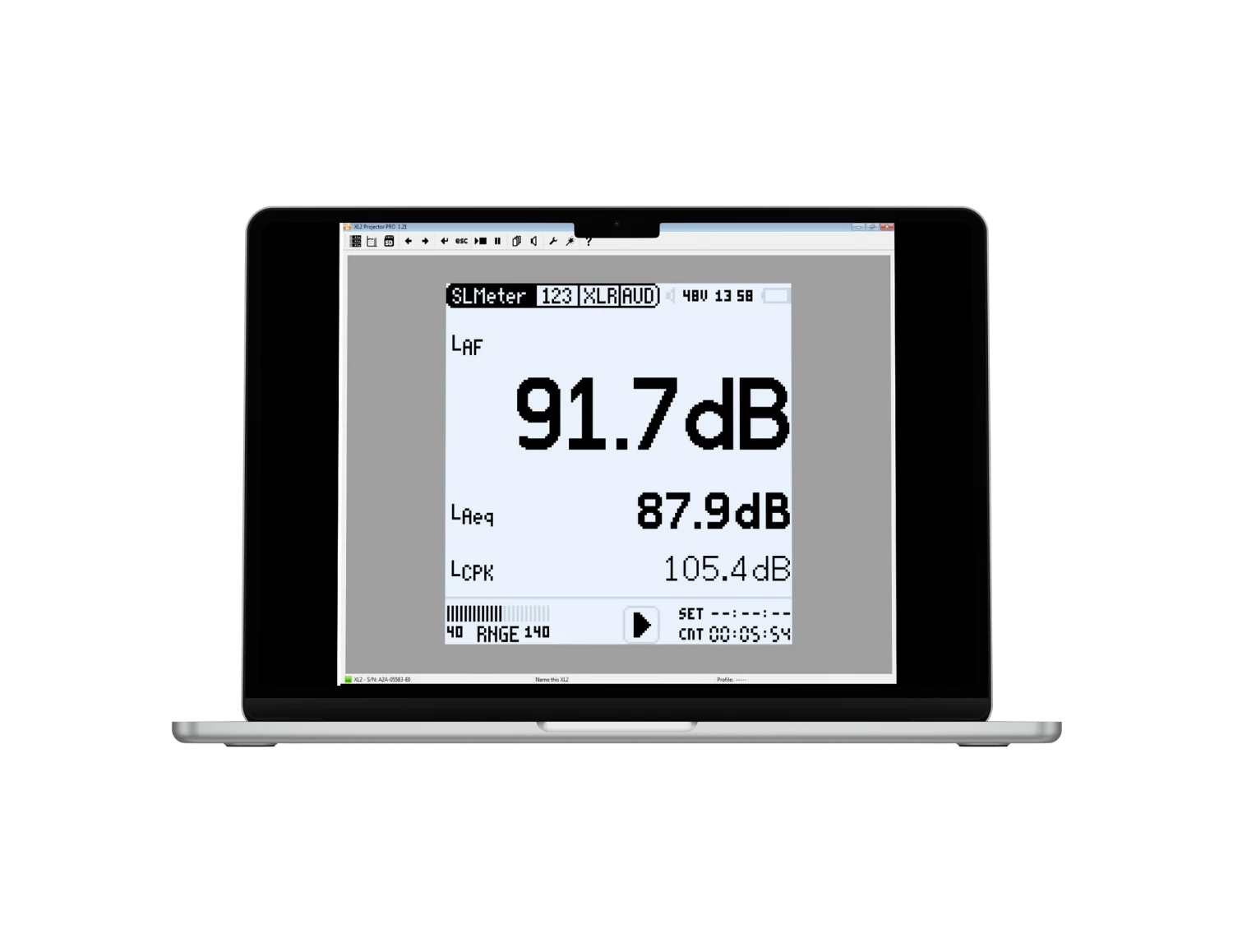
  • แสดงหน้าจอ XL2 แบบเรียลไทม์ผ่าน USB บนคอมพิวเตอร์ Windows หรือ Mac และควบคุม XL2 ด้วยเมาส์และคีย์บอร์ดReal-time XL2 screen via USB on a Windows or Mac computer; control the XL2 with mouse and keyboard
  • พื้นหลังเปลี่ยนจากเขียวเป็นแดงตามค่าจำกัดที่ผู้ใช้ตั้งThe background turns from green to red according to user-defined limits
  • ดึงข้อมูลจาก XL2 ได้โดยไม่ขัดจังหวะการวัด เข้าถึงไฟล์ทั้งหมดของ XL2 ระหว่างวัด และลากข้อมูลของวันก่อนมาเก็บในคอมพิวเตอร์ได้Retrieve data without interrupting the measurement; the whole XL2 file system is available while measuring; drag & drop the previous day's records

XL View (Option)XL View (optional)

  • แสดงระดับเสียงขนาดใหญ่บนจอคอมพิวเตอร์ เลือกแสดง 1, 2 หรือ 3 ค่าDisplays sound levels in large size on the computer screen; show 1, 2 or 3 values
  • ระดับที่เกินค่าจำกัดแสดงเป็นสีส้ม (เตือนล่วงหน้า) หรือสีแดง (เกินค่า)Levels exceeding the limits are shown in orange (pre-warning) or red (limit exceeded)
  • ต้องมี XL2 Projector PRO Option (# 600 000 439) หรือ XL2 Remote Measurement Option บน XL2Requires the XL2 Projector PRO Option (# 600 000 439) or the XL2 Remote Measurement Option on the XL2

Sound Level Predictor (Option)Sound Level Predictor (optional)

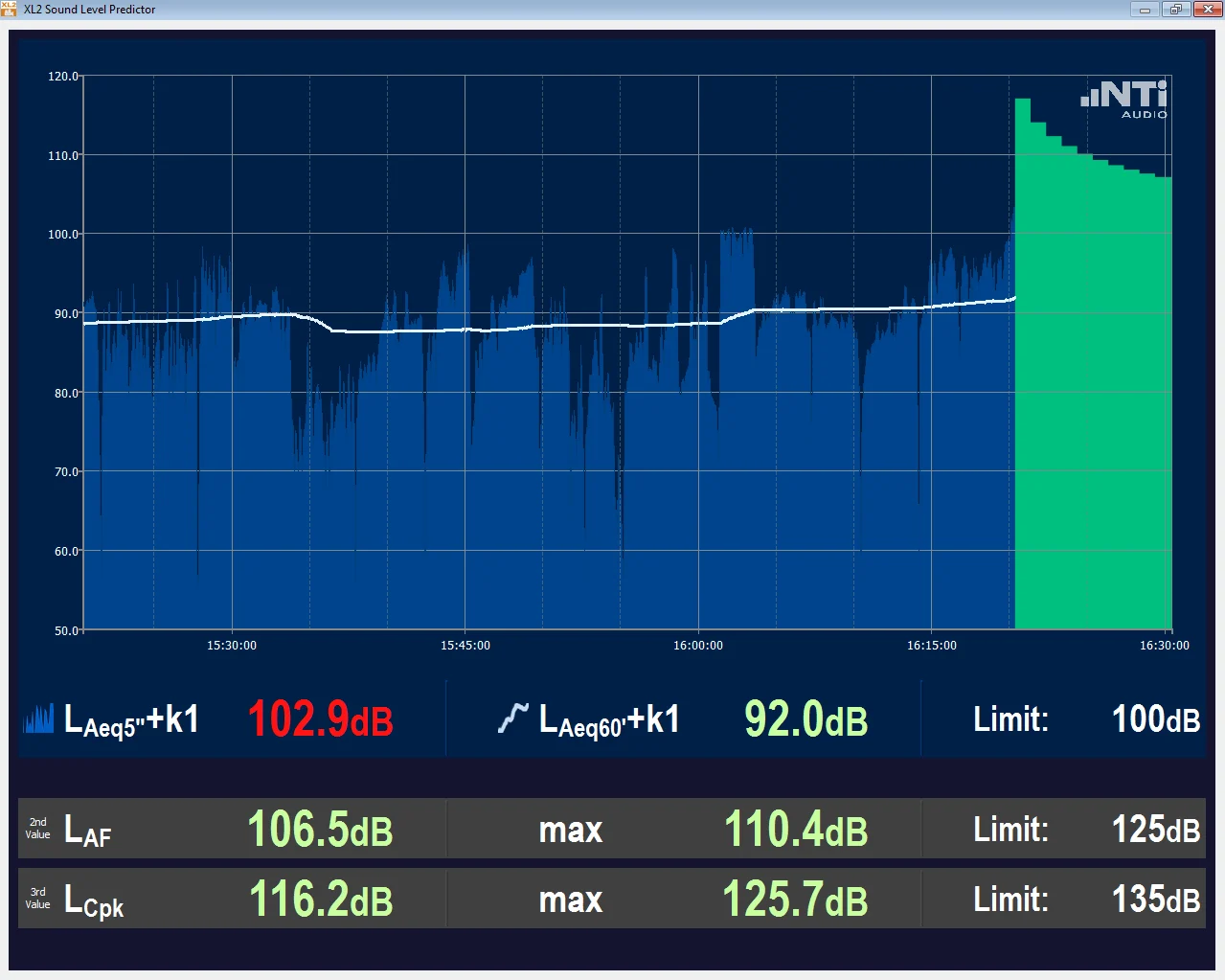
  • แสดงประวัติระดับเสียงของช่วงการวัดปัจจุบัน และ Headroom ของช่วงการวัดหรือไม่กี่นาทีข้างหน้าVisualises the level history of the current interval and the headroom for the period or the next few minutes
  • แท่งสีเขียว = ระดับต่ำกว่าค่าจำกัดมาก; แท่งสีแดง = ต้องลดระดับที่ Mixing deskGreen bars: well below limits; red bars: reduce the level at the mixing desk
  • ต้องมี XL2 Projector PRO Option (# 600 000 439) หรือ XL2 Remote Measurement Option บน XL2Requires the XL2 Projector PRO Option (# 600 000 439) or the XL2 Remote Measurement Option on the XL2
หน้าจอ Sound Level PredictorSound Level Predictor screen
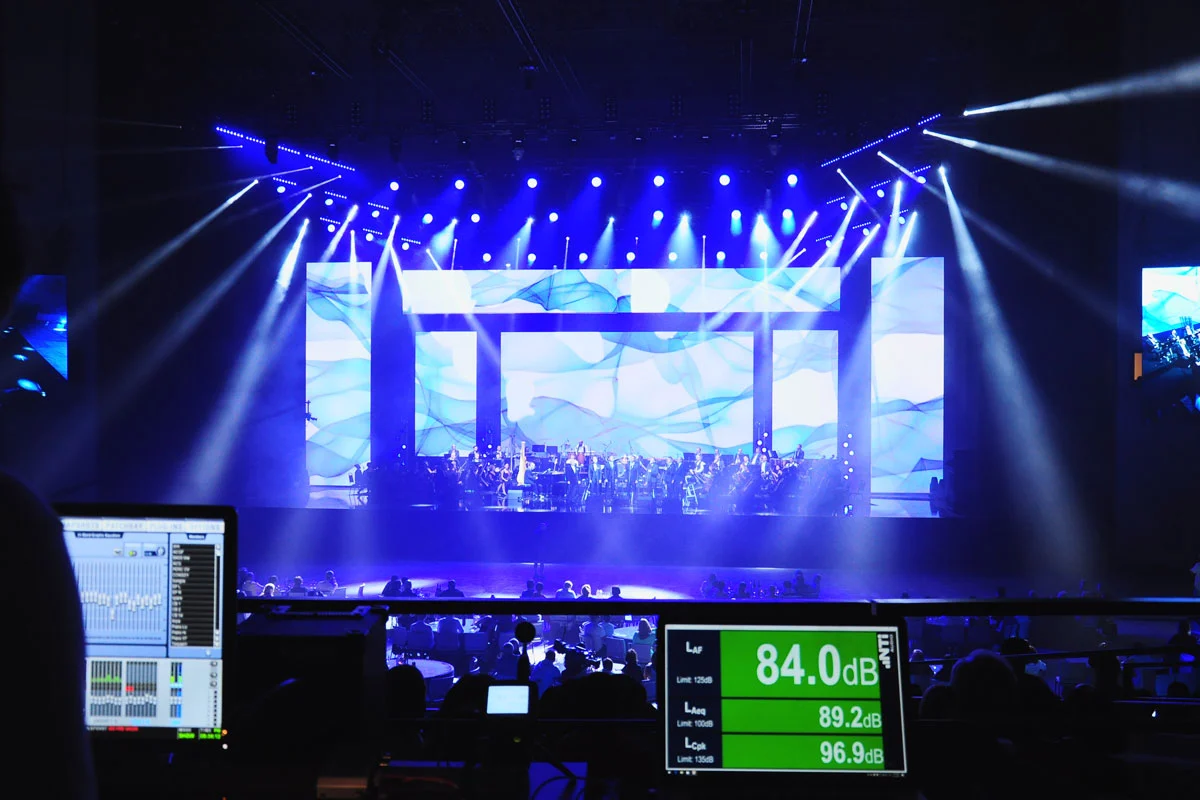
การแสดงระดับเสียงสดด้วย Projector PRO ในงานคอนเสิร์ตLive level monitoring with Projector PRO at a concert

Sound Level Predictor และการแสดงระดับเสียงสดในงานแสดง (ภาพ: NTi Audio)Sound Level Predictor and live level display at an event (images: NTi Audio)

ขั้นตอนการทำงานWorkflow

ระบบเฝ้าระดับเสียงงานแสดงสดA live sound monitoring set-up

  1. XL2 + ไมโครโฟน วัดระดับเสียงXL2 + microphone measure the sound level
  2. ต่อ USB เข้าคอมพิวเตอร์USB to the computer
  3. Projector PRO: หน้าจอ XL2 / XL View / PredictorProjector PRO: XL2 screen / XL View / Predictor
  4. FOH ปรับระดับให้อยู่ในค่าจำกัดFront of house keeps levels within limits
  5. XL2 เก็บข้อมูลไว้เป็นหลักฐานXL2 stores the data for documentation

บันทึกการตั้งค่าเป็น Profile ได้ สำหรับงานรายวัน (เช่น เฝ้าระดับเสียงของร้านใกล้ชุมชน) การเฝ้าระดับเสียงเริ่มและหยุดตามการเปิด/ปิดคอมพิวเตอร์ และเวลาของ XL2 ซิงก์กับคอมพิวเตอร์อัตโนมัติ จึงเก็บ XL2 ไว้ในที่ปลอดภัยได้โดยไม่ต้องกดปุ่มSettings are saved in a profile. For daily monitoring (e.g. a neighbourhood bar) monitoring starts and ends with the computer, and the XL2 time is synchronised with the computer, so the meter can stay in a protected place without key presses.

คู่มือเริ่มต้นใช้งานBeginner Guide

คู่มือเริ่มต้นใช้งาน Projector PRO กับ XL2Projector PRO Beginner Guide with the XL2

ขั้นตอนตาม XL2 Projector PRO User Manual ของ NTi Audio ชื่อหน้าต่างและตัวเลือกใช้ตามคู่มือThe steps follow NTi Audio's XL2 Projector PRO User Manual; window and option names are as in the manual.

ต้องมีอะไรบ้างก่อนเริ่มWhat you need before you start

  • เครื่อง XL2 ที่ลงทะเบียนแล้ว (Projector PRO ใช้กับ XL2 เท่านั้น ส่วน XL3 ใช้ XL-View ในตัวผ่านเบราว์เซอร์แทน)A registered XL2 (Projector PRO is for the XL2 only; the XL3 uses its built-in XL-View in a browser instead).
  • เฟิร์มแวร์ XL2 เวอร์ชัน 4.00 ขึ้นไปจึงใช้ได้ทุกฟังก์ชันรวม Profile (ตามตารางในคู่มือ: 2.30 แสดงผลพื้นฐาน, 3.10 เพิ่ม XL View และ Virtual XL2 Keypad, 3.22 เพิ่ม Sound Level Predictor และ Internal File Viewer, 4.00 เพิ่ม Profiles)XL2 firmware 4.00 or later for every function including profiles (per the manual's table: 2.30 basic display, 3.10 adds XL View and the Virtual XL2 Keypad, 3.22 adds the Sound Level Predictor and Internal File Viewer, 4.00 adds Profiles).
  • Projector PRO Option (#600 000 439) หรือ XL2 Remote Measurement Option ในเครื่อง XL2 ถ้าจะใช้ XL View และ Sound Level Predictor ส่วนการแสดงหน้าจอพื้นฐานใช้ฟรีThe Projector PRO Option (#600 000 439) or the XL2 Remote Measurement Option on the XL2 for XL View and the Sound Level Predictor; the basic live display is free.
  • คอมพิวเตอร์ Windows 7, 8, 10 ขึ้นไป หรือ Mac OS 10.8 ขึ้นไป และสาย USBA computer with Windows 7, 8, 10 or later, or Mac OS 10.8 or later, and a USB cable.
  1. STEP1

    ดาวน์โหลดและติดตั้งDownload and install

    ลงทะเบียน XL2 ที่ my.nti-audio.com แล้วดาวน์โหลด Projector PRO ซึ่งใช้ฟรีสำหรับลูกค้า XL2 ที่ลงทะเบียน ติดตั้งบนคอมพิวเตอร์ที่จะใช้แสดงผลRegister the XL2 at my.nti-audio.com and download Projector PRO, which is free for registered XL2 customers. Install it on the computer that will show the display.

  2. STEP2

    ต่อ XL2 กับคอมพิวเตอร์Connect the XL2 to the computer

    ต่อสาย USB ระหว่าง XL2 กับคอมพิวเตอร์ เมื่อ XL2 ถามโหมดการเชื่อมต่อ ให้เลือก COM port จากนั้นโปรแกรมจะแสดงหน้าจอ XL2 แบบเรียลไทม์ แถบสถานะแสดงสถานะการเชื่อมต่อและหมายเลขเครื่องConnect the XL2 to the computer with the USB cable. When the XL2 asks for the connection mode, choose COM port; the program then shows the XL2 screen live, and the status bar shows the connection state and serial number.

    ในโปรแกรมIn the programบน XL2: COM port · แถบสถานะ: “XL2 Analyzer is connected with online communication”On the XL2: COM port · status bar: “XL2 Analyzer is connected with online communication”

    ข้อควรระวังWatch outถ้าเลือกโหมดอื่นที่ XL2 โปรแกรมจะหาเครื่องไม่พบ (“No XL2 Analyzer found”)If another mode is chosen on the XL2, the program will not find it (“No XL2 Analyzer found”).

  3. STEP3

    ตั้งเวลาให้ตรงกับคอมพิวเตอร์Synchronise the clock

    ใน Preferences ติ๊กให้ XL2 ตั้งวันและเวลาตามคอมพิวเตอร์ เวลาในไฟล์บันทึกจะได้ตรงกับเหตุการณ์ในงานIn Preferences, tick the option for the XL2 to take its date and time from the computer, so the times in the logs match the event.

    ในโปรแกรมIn the programPreferences → Set date & timePreferences → Set date & time

  4. STEP4

    ตั้งค่าการวัดบน XL2Set up the measurement on the XL2

    กำหนดค่าที่จะแสดง ย่านอินพุต โหมดตัวจับเวลา (ต่อเนื่องหรือวนซ้ำ) การบันทึกข้อมูล และถ้าต้องการ ขีดจำกัดสำหรับไฟ LED หรือพอร์ต digital I/O คู่มือแนะนำให้เริ่มจาก Profile สำเร็จรูปที่มีมาให้Set the values to display, the input range, the timer mode (continuous or repeated), the logging and, if needed, limits for the LED or the digital I/O. The manual recommends starting from one of the predefined profiles.

  5. STEP5

    เปิด XL View เพื่อแสดงตัวเลขขนาดใหญ่Open XL View for large numbers

    XL View แสดงระดับเสียงได้สูงสุดสามค่าเป็นตัวเลขขนาดใหญ่ พื้นหลังเปลี่ยนเป็นสีเขียว เหลือง หรือแดงตามขีดจำกัด ดับเบิลคลิกที่ค่าเพื่อเลือกระดับที่จะแสดง ใส่ขีดจำกัด (แดง) และขีดเตือน (เหลือง) แล้วกด OKXL View shows up to three levels as large numbers, with a green, amber or red background according to the limits. Double-click a value to choose the levels to show, enter the limit (red) and the warning limit (amber), then press OK.

    ในโปรแกรมIn the programXL View → ดับเบิลคลิกค่า → เลือกระดับ ขีดจำกัด ขีดเตือน → OK · ขนาดตัวเลขตั้งได้ที่ Preferences → XL View top display sizeXL View → double-click a value → levels, limit, warning → OK · number size under Preferences → XL View top display size

  6. STEP6

    หรือใช้ Sound Level PredictorOr use the Sound Level Predictor

    Predictor ประมาณว่าอีกไม่กี่นาทีข้างหน้าจะดังได้แค่ไหนโดยไม่เกินเกณฑ์ จากค่า LAeq ตั้งแต่เริ่มถึงตอนนี้ และ LAeq ของ 60 วินาทีล่าสุด คลิกขวาที่หน้าต่างเพื่อตั้ง Level Settings (Chart Level, 2nd Level, 3rd Level) พร้อมขีดจำกัดและค่าเตือน ในโหมด Repeat จะเห็นแท่งเดียวเป็นขีดบนของ LAeq ที่แนะนำสำหรับช่วงที่เหลือ ในโหมด Continuous จะเห็น 10 แท่งสำหรับ 1–10 นาทีข้างหน้าThe Predictor estimates how loud the next few minutes can be without exceeding the limit, from the LAeq since the start and the LAeq of the last 60 seconds. Right-click its window to set the Level Settings (Chart Level, 2nd Level, 3rd Level) with limits and warnings. In Repeat mode a single bar shows the recommended upper LAeq for the rest of the interval; in Continuous mode ten bars cover the next 1–10 minutes.

    ในโปรแกรมIn the programSound Level Predictor → คลิกขวา → Level Settings · โหมดตัวจับเวลา Repeat / ContinuousSound Level Predictor → right-click → Level Settings · timer mode Repeat / Continuous

    ข้อควรระวังWatch outขีดจำกัดของ Predictor แยกจากขีดจำกัดใน XL2 แต่โหมดตัวจับเวลาและช่วงเวลาอ้างอิงของ XL2 ใช้กับ Predictor ด้วยPredictor limits are separate from the XL2's own limits, but the XL2's timer mode and reference time also apply to the Predictor.

  7. STEP7

    เริ่มวัดStart the measurement

    กดปุ่ม Start บน XL2 (หรือบน Virtual XL2 Keypad) เพื่อเริ่มบันทึกระดับเสียง แล้ว Predictor จะเริ่มแสดงข้อมูลPress Start on the XL2 (or on the Virtual XL2 Keypad) to begin recording levels; the Predictor then starts showing data.

    ในโปรแกรมIn the programปุ่ม Start · Virtual XL2 Keypad (ควบคุมได้ทุกปุ่มยกเว้น Limit และเปิด/ปิด)Start button · Virtual XL2 Keypad (all buttons except Limit and On/Off)

  8. STEP8

    บันทึกเป็น Profile สำหรับใช้ประจำSave a Profile for regular use

    Profile เก็บการตั้งค่าเครื่องวัดของ XL2 ระดับและขีดจำกัดที่เลือกใน Projector PRO หน้าต่างเริ่มต้น (XL View, Sound Level Predictor หรือหน้าจอปกติ) และตัวเลือกให้เริ่มวัดอัตโนมัติเมื่อเปิดโปรแกรม เหมาะกับการเฝ้าระวังรายวันที่เริ่มเมื่อเปิดคอมพิวเตอร์และหยุดเมื่อปิดเครื่องA Profile stores the XL2 sound level meter settings, the levels and limits chosen in Projector PRO, the startup window (XL View, Sound Level Predictor or the default projector) and the option to start measuring automatically when the software starts, which suits daily monitoring that starts when the computer starts and ends at shutdown.

    ในโปรแกรมIn the programProfiles → หน้าต่างเริ่มต้น → autostart measurement at software startProfiles → startup window → autostart measurement at software start

    ข้อควรระวังWatch outสร้าง Profile ได้เฉพาะเมื่อต่อ XL2 อยู่ ชื่อที่ขึ้นต้นด้วย # สงวนไว้สำหรับ Profile จากโรงงาน และขณะใช้ Profile จะแก้การตั้งค่าไม่ได้จนกว่าจะออกจาก ProfileProfiles can only be created with an XL2 connected, names starting with # are reserved for factory profiles, and settings cannot be changed while a profile is active until you exit it.
  9. STEP9

    ดึงไฟล์ระหว่างหรือหลังงานRetrieve files during or after the event

    ใช้ Internal File Viewer คัดลอกไฟล์จากหน่วยความจำ XL2 มายังคอมพิวเตอร์ได้โดยไม่ต้องหยุดการวัด และลบไฟล์ใน XL2 ได้ จากนั้นนำข้อมูลไปวิเคราะห์และทำรายงาน เช่น ใน Data ExplorerUse the Internal File Viewer to copy files from the XL2's memory to the computer without stopping the measurement, and to delete files on the XL2. The data can then be analysed and reported, for example in Data Explorer.

    ในโปรแกรมIn the programInternal File Viewer · Preferences → XL2 SD card access modeInternal File Viewer · Preferences → XL2 SD card access mode

ขั้นตอนตาม XL2 Projector PRO User Manual ของ NTi Audio (ฉบับเผยแพร่ปี 2019) NTi ไม่ได้ระบุเวอร์ชันปัจจุบันของโปรแกรมต่อสาธารณะ หน้าจอจริงจึงอาจต่างเล็กน้อย ส่วน XL3 ไม่ใช้ Projector PRO แต่มี XL-View ในตัวที่เปิดผ่านเบราว์เซอร์ได้ทั้งผ่าน NTi Connect และผ่าน IP ของเครื่องในเครือข่ายเดียวกันSteps follow NTi Audio's XL2 Projector PRO User Manual (published 2019). NTi does not publish the current program version, so screens may differ slightly. The XL3 does not use Projector PRO: it has a built-in XL-View, opened in a browser through NTi Connect or through the XL3's IP address on the same network.

ค่าที่ต้องอ่านให้เป็นValues to understand

ค่าที่ Sound Level Predictor ใช้The values the Sound Level Predictor uses

Predictor ใช้สองค่านี้ประมาณว่าจะดังได้อีกเท่าไรโดยไม่เกินเกณฑ์The Predictor uses these two values to estimate how much louder it can get without exceeding the limit.

LAeq ตั้งแต่เริ่มถึงตอนนี้LAeq so far LAeq · dB

คืออะไรWhat it is
ระดับเสียงเฉลี่ยแบบพลังงานตั้งแต่เริ่มช่วงการวัดถึงขณะนี้The energy-average level from the start of the measurement period until now.
ทำไมต้องสนใจWhy it matters
เกณฑ์ของงานแสดงสดมักกำหนดเป็น LAeq ในช่วงเวลาหนึ่ง ค่านี้บอกว่าตอนนี้ใช้ “งบ” ไปเท่าไรแล้วLive-event limits are often an LAeq over a period; this shows how much of the “budget” is already used.
เข้าใจผิดบ่อยCommon misunderstanding
ช่วงที่ดังมากช่วงสั้น ๆ ทำให้ค่าเฉลี่ยทั้งช่วงสูงขึ้นมากและลดลงยากA short very loud passage raises the average for the whole period a lot, and it is hard to bring back down.
อ่านพื้นฐานเพิ่มเติม →Read the basics →

LAeq ของ 60 วินาทีล่าสุดLAeq of the last 60 s LAeq60" · dB

คืออะไรWhat it is
ระดับเฉลี่ยแบบพลังงานในหนึ่งนาทีที่ผ่านมาThe energy-average level over the last minute.
ทำไมต้องสนใจWhy it matters
บอกแนวโน้มของเสียงตอนนี้ เพื่อให้ผู้คุมเสียงปรับก่อนเกินเกณฑ์Shows the current trend, so the engineer can adjust before the limit is exceeded.

ขีดจำกัดและขีดเตือนLimit and warning dB

คืออะไรWhat it is
ค่าที่ทำให้พื้นหลังเปลี่ยนเป็นสีแดง (เกินขีดจำกัด) หรือสีเหลือง (ใกล้ขีดจำกัด)The values that turn the background red (limit exceeded) or amber (close to the limit).
ทำไมต้องสนใจWhy it matters
ทำให้ทุกคนในงานเห็นสถานะได้ทันทีโดยไม่ต้องอ่านตัวเลขLets everyone see the status at a glance without reading numbers.
เข้าใจผิดบ่อยCommon misunderstanding
ขีดจำกัดใน Predictor ตั้งแยกจากขีดจำกัดของ XL2The Predictor's limits are set separately from the XL2's own limits.

เหมาะกับใครWho it is for

ใช้ในงานอะไรWhere it is used

วิศวกรเสียง Front of houseFront-of-house engineers

ปรับช่วงดนตรีที่ดังให้ผู้ชมพอใจสูงสุด ขณะยังอยู่ในค่าจำกัดตามกฎหมายOptimise loud musical passages for maximum audience satisfaction while staying within legal limits

เฝ้าระดับเสียงงานอีเวนต์หลายวันMulti-day event monitoring

เช่น เทศกาลหลายวัน หรือการเฝ้าระดับเสียงประจำวันE.g. a festival over several days or daily monitoring

ความเข้ากันได้Compatibility

เครื่องวัดและระบบที่รองรับInstrument and system requirements

เครื่องวัดInstrument

  • XL2 Sound Level Meter (ดาวน์โหลดฟรีสำหรับลูกค้า XL2 ที่ลงทะเบียน)XL2 Sound Level Meter (free download for registered XL2 customers)
  • XL View และ Sound Level Predictor ต้องมี XL2 Projector PRO Option (# 600 000 439) หรือ XL2 Remote Measurement Option ซึ่ง NTi Audio ระบุว่ารวมความสามารถนี้ไว้XL View and Sound Level Predictor require the XL2 Projector PRO Option (# 600 000 439) or the XL2 Remote Measurement Option, which NTi Audio states includes this functionality

ระบบที่ต้องการSystem requirements

  • Windows 7, 8, 10 หรือใหม่กว่าWindows 7, 8, 10 or higher
  • Mac OS 10.8 หรือใหม่กว่าMac OS 10.8 or higher

สำหรับผู้ใช้ XL3For XL3 users

XL3 มีโหมด XL View ในตัวเครื่อง สตรีมระดับเสียงไปยังเบราว์เซอร์บน iPad โทรศัพท์ หรือจอใหญ่ได้โดยตรงThe XL3 has a built-in XL View mode that streams levels directly to a browser on an iPad, phone or large screen.

เลือกให้ถูกWhich one do I need?

Projector PRO, XL View และ Remote Measurement เกี่ยวข้องกันอย่างไรHow Projector PRO, XL View and Remote Measurement relate

ชื่อคล้ายกันแต่ต่างกันที่เครื่องวัดและสิ่งที่ต้องซื้อ สรุปตามที่ NTi Audio ระบุSimilar names, but they differ in instrument and in what you need to buy. Summarised from NTi Audio's pages.

เครื่องมือToolคืออะไรWhat it isเครื่องวัดInstrumentต้องมีอะไรWhat you need
Projector PROคืออะไรWhat it isซอฟต์แวร์บน Windows / Mac แสดงหน้าจอ XL2 แบบเรียลไทม์ผ่าน USBWindows / Mac software that shows the XL2 screen in real time via USBเครื่องวัดInstrumentXL2ต้องมีอะไรWhat you needฟรีสำหรับผู้ใช้ XL2 ที่ลงทะเบียนFree for registered XL2 users
XL View + Sound Level PredictorคืออะไรWhat it isฟังก์ชันเสริมใน Projector PRO: ระดับเสียงขนาดใหญ่ และประวัติระดับเสียงกับ HeadroomOptional Projector PRO functions: large level display, and level history with headroomเครื่องวัดInstrumentXL2ต้องมีอะไรWhat you needXL2 Projector PRO Option # 600 000 439 หรือ XL2 Remote Measurement OptionXL2 Projector PRO Option # 600 000 439 or XL2 Remote Measurement Option
XL2 Remote Measurement OptionคืออะไรWhat it isOption บน XL2: ส่งข้อมูลเรียลไทม์เข้าโปรแกรมบน PC ผ่าน USB พร้อม Command set และรวมความสามารถของ Projector PRO OptionXL2 option: real-time data into PC applications via USB with a command set; includes the Projector PRO Option functionalityเครื่องวัดInstrumentXL2ต้องมีอะไรWhat you needซื้อเป็น Option (รหัสไม่ระบุบนเว็บ NTi Audio)Purchased as an option (no order number on NTi Audio's web page)
XL View ของ XL3XL3 XL ViewคืออะไรWhat it isโหมดจอใหญ่ในตัว XL3 สตรีม 3 ค่าพร้อมค่าจำกัดไปยังเบราว์เซอร์ผ่าน NTi Connect หรือเครือข่ายภายในBuilt-in XL3 large-screen mode streaming three levels with limits to a browser via NTi Connect or a local networkเครื่องวัดInstrumentXL3ต้องมีอะไรWhat you needฟรีในทุกเครื่อง XL3 ไม่ต้องใช้ Projector PROFree on every XL3; no Projector PRO needed

หน้า Projector PRO ของ NTi Audio ระบุเฉพาะ XL2 · ดูภาพรวม Option ทั้งหมดที่หน้า Option และ License สำหรับ XL2 / XL3NTi Audio's Projector PRO page names the XL2 only · see all options on the XL2 / XL3 options & licences page.

ชุดวัดMeasurement kit

XL2 Kit for Live Sound Monitoring

ชุดประกอบด้วยThe kit includes

  • XL2 Sound Level Meter
  • Projector PRO Option for XL2
  • ไมโครโฟน M4261, ASD CableM4261 measurement microphone, ASD cable
  • Cable Test Plug (MR-PRO)
  • Mains Power Adapter, Exel System CaseMains power adapter, Exel System Case

เพิ่มเติมตามงานOptional as required

  • Limit Light: ไฟแสดงระดับเสียงสีเขียว ส้ม หรือแดงLimit Light: visual level indication with green, orange or red light
  • Class 2 Microphone Calibrator สำหรับสอบเทียบโดยผู้ใช้Class 2 microphone calibrator for user calibration

รายการตามที่ NTi Audio ระบุในหน้า Projector PRO (ซึ่งยังระบุไมโครโฟน M4261) GET BEST SOUND ยืนยันรุ่นไมโครโฟนและอุปกรณ์ปัจจุบันในใบเสนอราคาList as given on NTi Audio's Projector PRO page (which still names the M4261 microphone); GET BEST SOUND confirms the current microphone model and items in the quotation.

Engineering support

ต้องการระบบเฝ้าระดับเสียงสำหรับงานแสดงสด?Planning live sound level monitoring?

ทีมวิศวกร GET BEST SOUND ช่วยเลือกอุปกรณ์ จัดชุดระบบ และวางขั้นตอนการวัดให้ตรงกับงานของคุณGET BEST SOUND engineers help with product selection, system configuration and the measurement workflow for your work.

FAQ

คำถามที่พบบ่อยFrequently asked questions

Projector PRO เสียเงินหรือไม่Is Projector PRO free?

การแสดงหน้าจอ XL2 บนคอมพิวเตอร์ใช้ฟรีสำหรับผู้ใช้ XL2 ที่ลงทะเบียน ส่วน XL View และ Sound Level Predictor ต้องมี XL2 Projector PRO Option หรือ XL2 Remote Measurement OptionShowing the XL2 screen on a computer is free for registered XL2 users; XL View and Sound Level Predictor need the XL2 Projector PRO Option or the XL2 Remote Measurement Option.

มี XL2 Remote Measurement Option แล้ว ต้องซื้อ Projector PRO Option อีกหรือไม่With the XL2 Remote Measurement Option, do I also need the Projector PRO Option?

NTi Audio ระบุว่า XL2 Remote Measurement Option รวมความสามารถของ Projector PRO Option ไว้แล้วNTi Audio states that the XL2 Remote Measurement Option includes the Projector PRO Option functionality.

ใช้ Projector PRO กับ XL3 ได้หรือไม่Can I use Projector PRO with the XL3?

หน้า Projector PRO ของ NTi Audio ระบุเฉพาะ XL2 ส่วน XL3 มี XL View ในตัวเครื่องให้ใช้ฟรีผ่านเบราว์เซอร์NTi Audio's Projector PRO page names the XL2 only; the XL3 has a free built-in XL View in the browser.

Gallery

ต้องการเฝ้าระดับเสียงงานแสดงสดให้อยู่ในค่าจำกัด?Need to keep live sound within limits?

ให้วิศวกร GET BEST SOUND ช่วยจัดชุดเครื่องวัด Option และการแสดงผลให้ตรงกับงานLet GET BEST SOUND engineers configure the meter, options and display for your event.

โทรศัพท์Phone062-195-1909
อีเมลEmailgetbestsoundthailand@gmail.com
Line Official@x2525